A little more context. Every time.

Keep the details that matter with every contact.

A separate address book for people, notes, files and places. Add contacts manually, import selected records, or scan printed details.

For Android Google sign-in required at setup Free version contains ads

Make room for your people
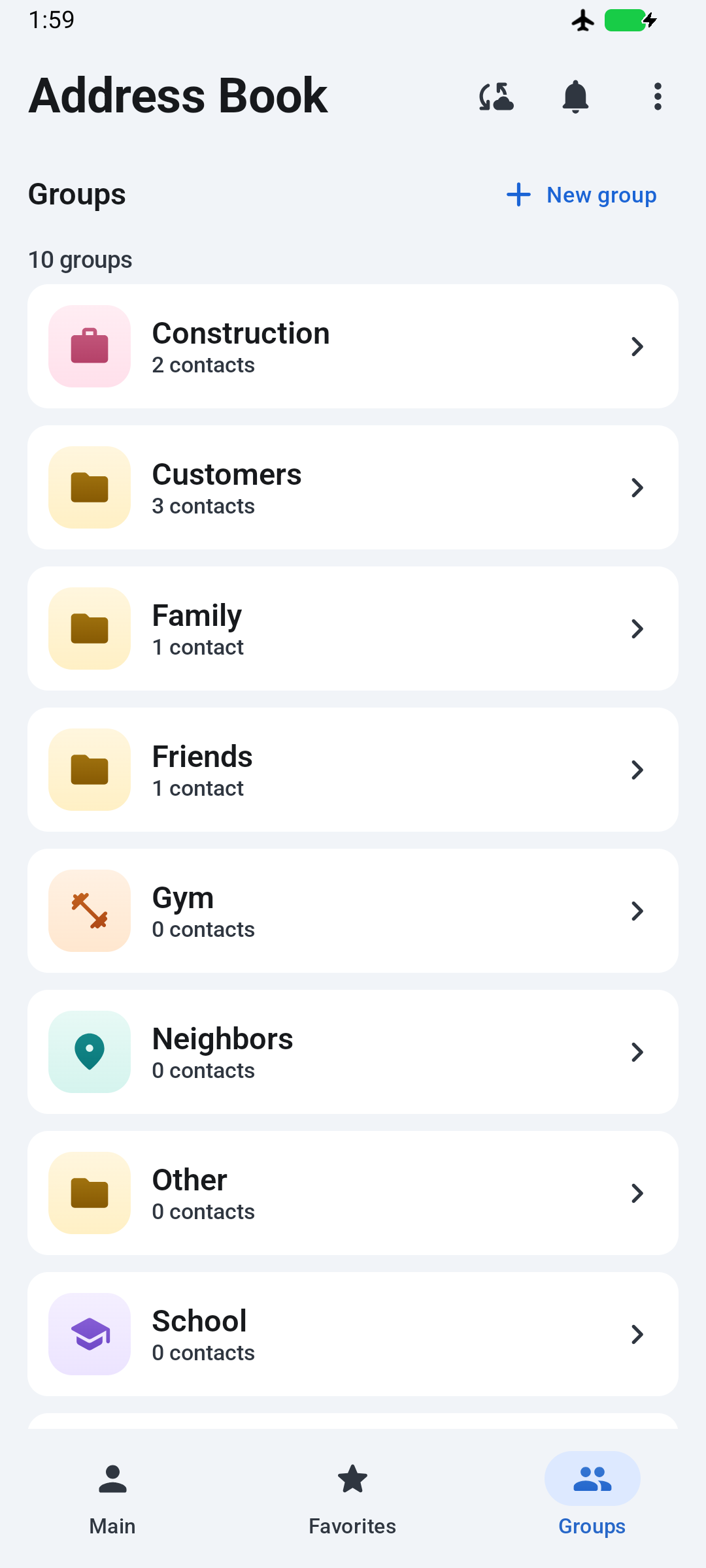
Groups screen with example contacts organized into Construction, Customers, Family, Friends and other categories.
Organize the people you need.
Example contact details shown.
People Notes & context Useful files Addresses

A 25-second example

Keep a client’s note and file together.

See how a saved project note helps find Emma again, with her sample project file kept beside her contact details.

Basic contacts and notes are free. Free accounts can attach 3 files total across the app, up to 50 MB per file. Premium removes the file-count limit; the 50 MB limit per file remains.

For Android · Google sign-in required at setup · Free app contains ads

Get it on Google Play
Read the video description

A silent sequence of genuine app screenshots shows a contact list, Emma Wilson’s saved project note, a sample Kitchen-remodel-notes PDF attached to her contact, and a search for “cabinet” returning Emma because that word is in her note. External titles explain the example, free file allowance and Google Play download link. All records are fictional. Search covers saved contact context; it does not search inside attached files.

Silent screenshot sequence · Fictional records
Genuine app screenshots, not a live recording.

Open the video separately

Start with the person

A number is only
part of the story.

Keep the practical details together, so the next conversation starts with the context you need.

Give every contact
a place.

Keep a separate address book for work, home and the people you want to remember. Use groups and favorites to bring useful entries together.

Add multiple phone numbers, emails and addresses, plus company details, birthdays, websites and photos.

How it relates to your phonebook
Remember why
you saved them.

Add a note about a project, a recommendation or where you met. Find entries by name, notes, company, group, or their primary phone, email and address.

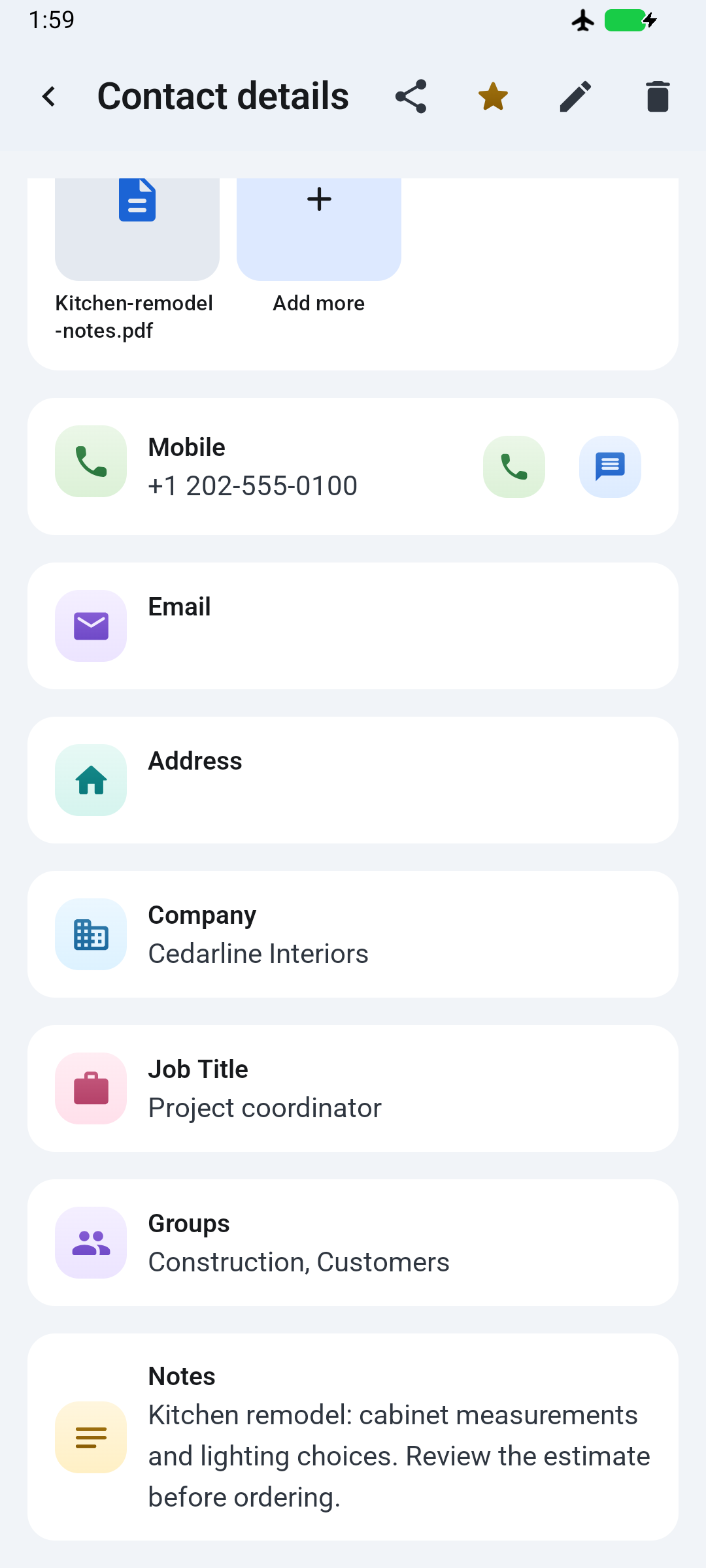
Example Emma Wilson contact with a project note about cabinet measurements and lighting choices, company details and groups.
A project note kept with the person.
Example contact details shown.

Keep useful files
with the person.

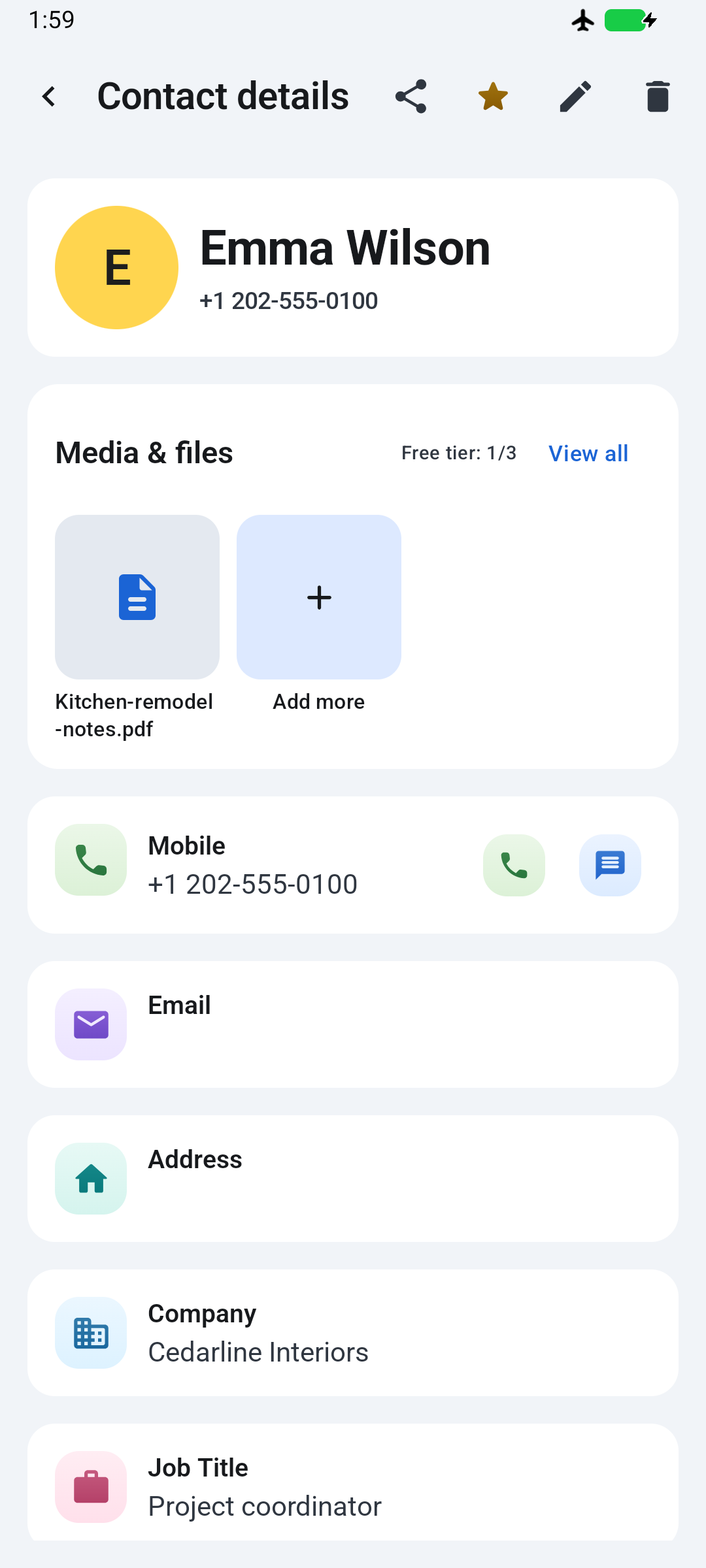
Attach photos, videos, PDFs or documents to a contact. Keep a quotation, a reference image or project paperwork beside the details of the person it belongs to.

Example Emma Wilson contact with Kitchen-remodel-notes.pdf in Media and files.
Project paperwork beside the contact.
Example document and contact details shown.

Free: 3 files across the app · Up to 50 MB per file.
Premium removes the file count limit.

Find the context you remember

Remember the project.
Find the person.

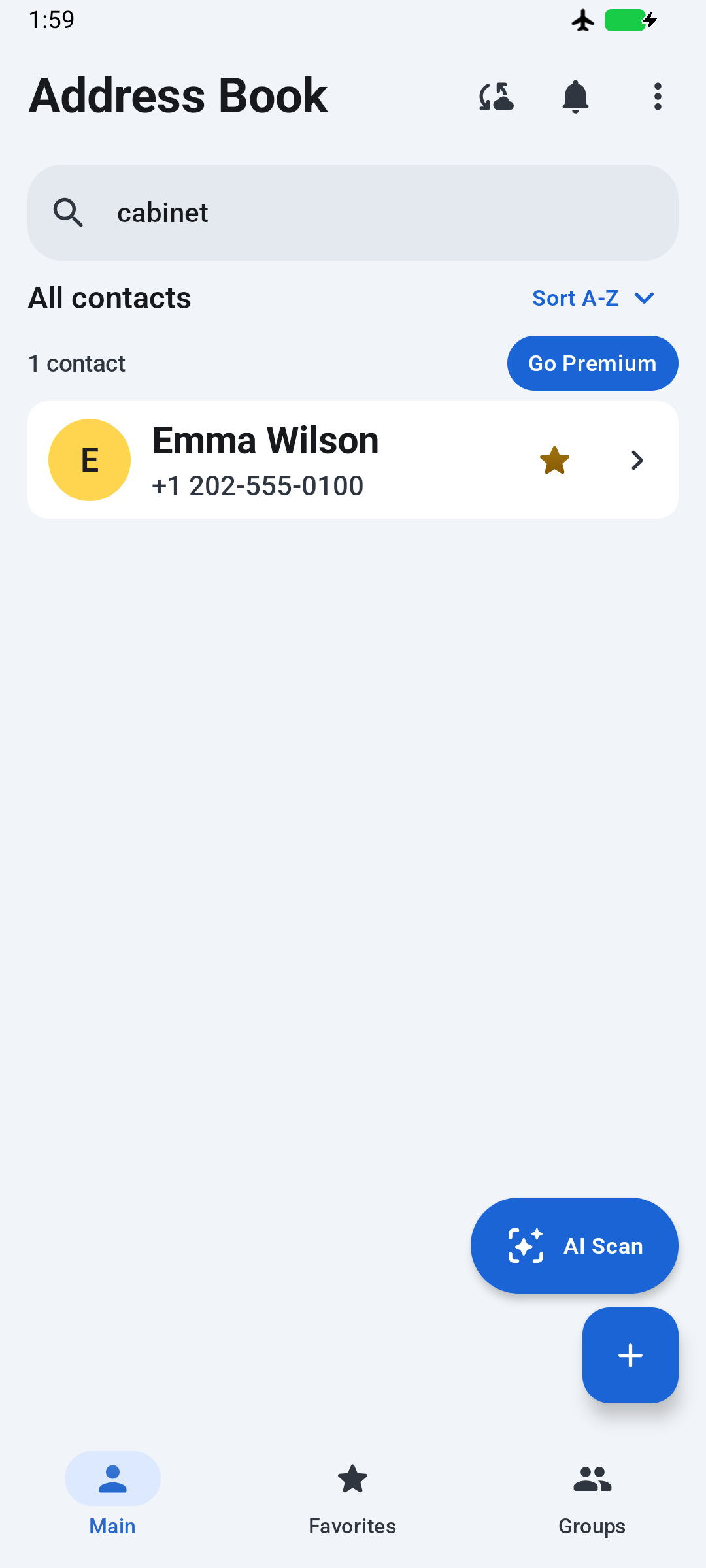
A name is not always what comes to mind first. In this example, searching cabinet finds Emma Wilson because that word is in her saved project note.

Search your saved notes, company details and groups, alongside names and primary contact fields. It does not read the contents of attached documents.

See what contact search covers
Search for cabinet returns example contact Emma Wilson because that word occurs in her saved project note.
Remember a detail. Find the person.
Example query and contact shown.

Keep the address with the person

Keep an address
with the person.

Save manually entered address details with the contact they belong to.

  • Enter the address details yourself.
  • Add a useful label, such as Home.
  • Save the address with the contact.

Add the parts of an address that matter, then check the details before saving.

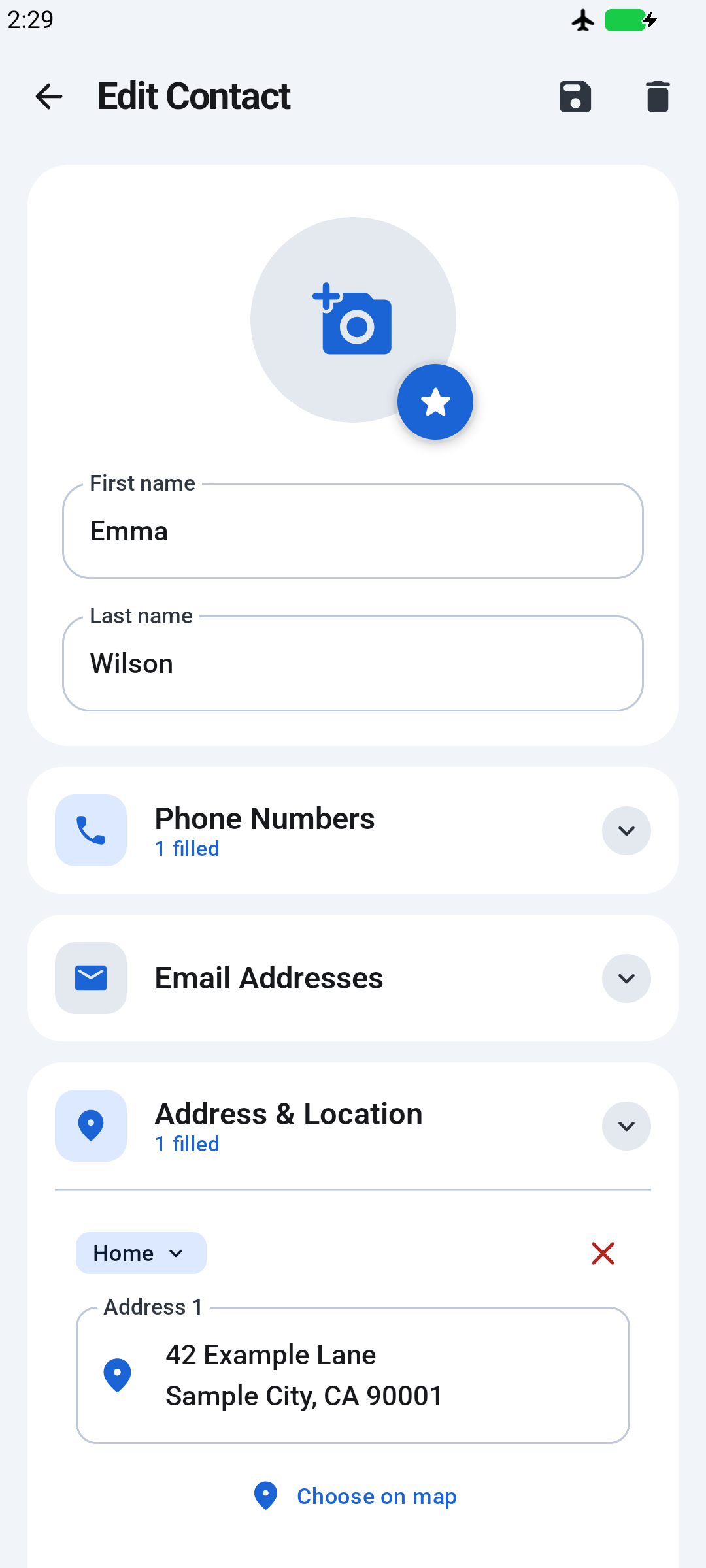
Edit Contact screen showing example contact Emma Wilson and the saved Home address 42 Example Lane, Sample City, CA 90001.
Keep an address with the person.
Example contact and address shown.

For the everyday upkeep

Make your address book
easier to live with.

01 /

Review the clutter.

Find duplicate entries and review merge or delete actions. Check the details before deciding what to keep.

02 /

Recover a recent deletion.

Restore contacts deleted inside this address book from its Recycle bin within 30 days.

03 /

Bring in what you need.

Import selected device contacts or entries from a VCF file. Copy selected app contacts to phone storage or a device account.

04 /

Keep a copy.

Premium adds CSV and VCF export, plus optional cloud backup and restore. Exported contact lists are not a complete archive of attached files.

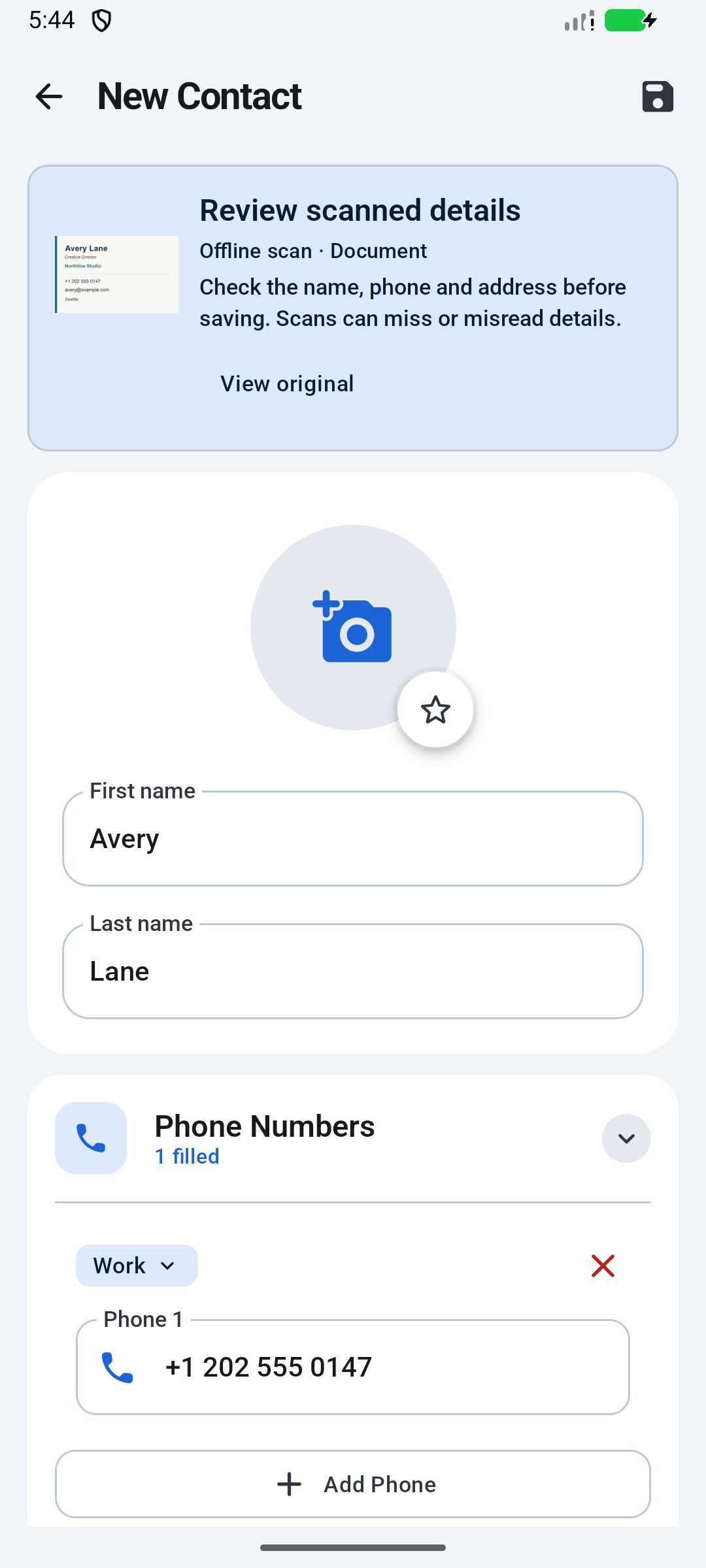
Editable contact form after offline text recognition of an example Avery Lane card. Name and address details have been reviewed and corrected.
Offline text recognition shown.
Example details reviewed and corrected before saving.

Another way to add a contact

Got the details
on paper?

Choose a photo of a business card, delivery label or utility bill. Read it with AI or offline text recognition, then check and edit the result before saving.

It joins the same address book as the contacts you add manually or import. Scans can miss or misread details, so your review matters.

Read the scanning guide

A few useful details

Know what you’re
adding to your phone.

Is this automatically linked to my phone’s contacts?

It keeps its own address book. Importing brings selected contact records into the app, and transferring to your phone creates copies in the selected destination. Those copies are not automatically kept in sync with each other.

You can also create a contact directly in the app without importing your phonebook.

Do I need an account, and will I see ads?

Google sign-in is required during setup. The free version contains ads; Premium provides an ad-free experience. Free users may see an ad after tapping Read details, before recognition continues. Offline text recognition still requires that initial setup.

What can I keep and search?

A contact can include multiple phones, emails and addresses, company details, birthday, website, notes, a photo and attached files. Search matches names, notes, company, groups and the primary phone, email and address.

Search does not read the contents of attached documents or search every secondary contact field. Device import currently brings in the first phone and email from each device contact.

How do files, export and backup differ?

The free version allows 3 attached files across the app, up to 50 MB per file. Premium removes the count limit; the per-file size limit still applies.

CSV and VCF export and cloud backup and restore are Premium features. Exported contact lists do not bundle attached files. Cloud backup is optional and uses a snapshot; it should not be treated as a history of every change or a complete archive of attached documents.

How do AI and offline scanning work?

Each account receives 5 lifetime starter AI scans. Free users have 10 successfully extracted offline drafts per calendar month. Monthly and yearly Premium include 100 AI scans per month and unlimited offline scans. Additional AI scan packs are available in the app; purchased pack balances do not expire. Prices are shown in the app for your country.

AI scanning needs internet access and uploads the image to the scanning service. Offline text recognition processes the image on the device and works best with English. Both modes need a clear image and a final check before saving.

Where can I get help or delete my account?

Email appfeneshai@gmail.com for app support. For account removal, follow the account and data deletion instructions.

Read the Privacy Policy for details about data handling.

Keep the details together

Make room for
the people you need.

Organize contacts, remember the context and keep useful files and addresses close.

Get it on Google Play

For Android · Google sign-in required
Free version contains ads.