1. Before you start
You need an Android device, the current My Address Book app, and a card or a photo of one. The app currently requires Google sign-in during setup. Complete setup before starting your scan. AI scanning also needs an internet connection; offline text recognition processes the photo on your device.
The app supports business cards, delivery labels and bills. This guide focuses on a business card, but the same photo, review and save process also applies to contact and address details on those other documents.
Keep the original card nearby. A scan is a starting point. Names, digits, email addresses and address lines can be missed or misread, so compare the result with the card before saving.
2. Prepare the card and photo
Put one card on a plain surface with the printed side facing up. Use even lighting and move the phone or card if a reflection hides the text. Keep your fingers clear of names, numbers and the edges of the address.
- Include the whole card. Check that small text near the edges is inside the picture.
- Make the text readable. Hold the phone steady and focus on the print. If the letters look blurred when you inspect the photo, take another.
- Keep it upright. A straight-on photo is easier to check than a steep angle.
- Use a clear gallery image. Avoid a tiny thumbnail or a screenshot where the text has become too small to read.
A single, clearly framed card also makes it easier to tell which details belong together. If the reverse has extra information, compare it while reviewing and add any missing details manually.
3. Choose how to recognize the text
Open AI Scan in the app to reach Scan a card or address. Despite the entry point’s name, you can choose either mode:
Scan with AI
Needs internet access and sends your photo to the scanning service to read contact details. It uses your account’s AI scan balance.
Scan offline
Uses on-device text recognition. The photo stays on your device during recognition. This mode works best with English text and has a separate allowance.
Choose the mode according to your connection, your preference about uploading the image and your available scans. Offline recognition and AI scanning can both make mistakes; review is part of either workflow.
4. Capture, adjust and read
- Choose Take photo to use the camera, or Choose photo to select an existing image. Allow camera access if you want to take a new photo.
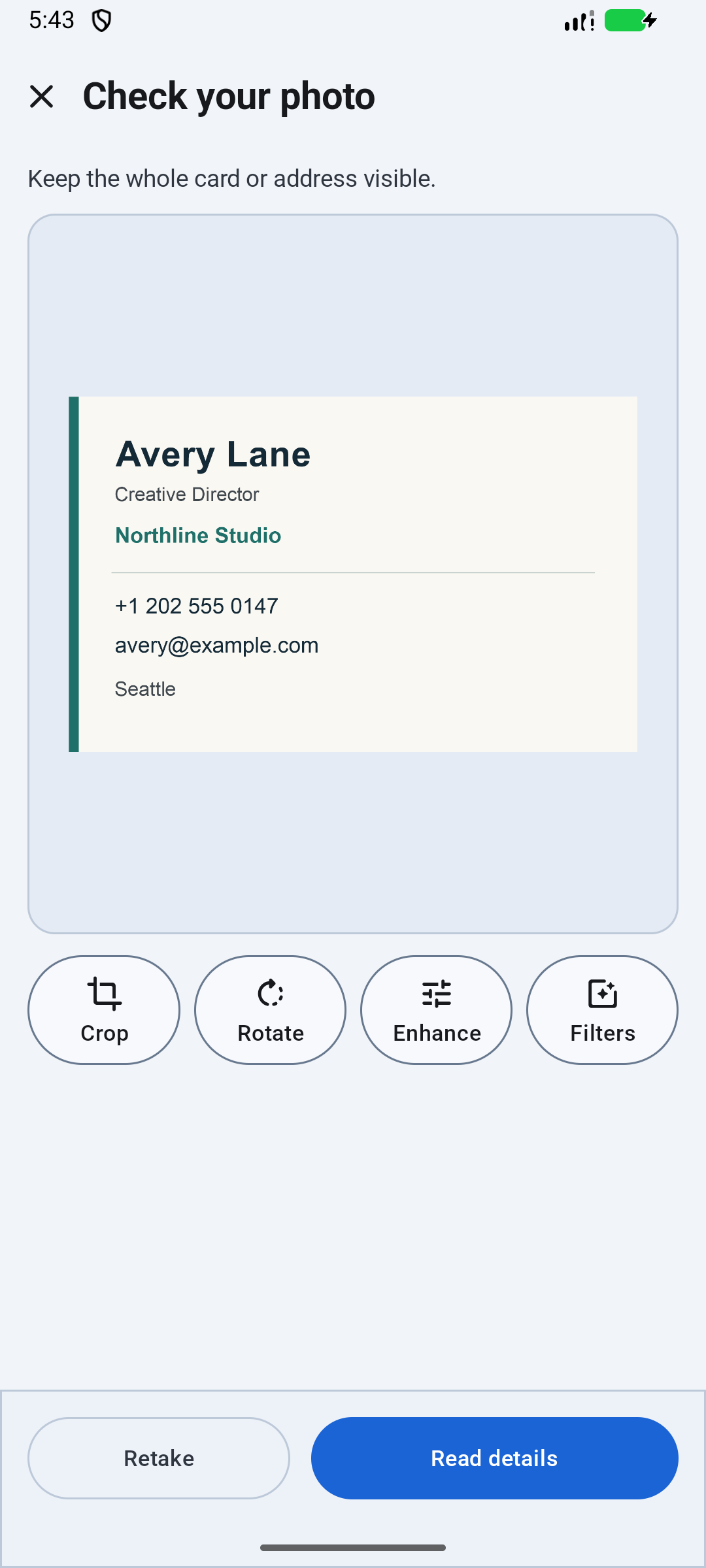
- On Check your photo, inspect the entire card. Use Crop to remove unrelated surroundings without cutting off text. Use Rotate if the print is sideways.
- If the original is blurred or important text is hidden, use Retake or choose a clearer image. Editing cannot recover text that was never readable.
- Tap Read details. Free users may see an ad before recognition continues. Wait for the chosen mode to return a result before reviewing the contact fields.
5. Review the details, field by field
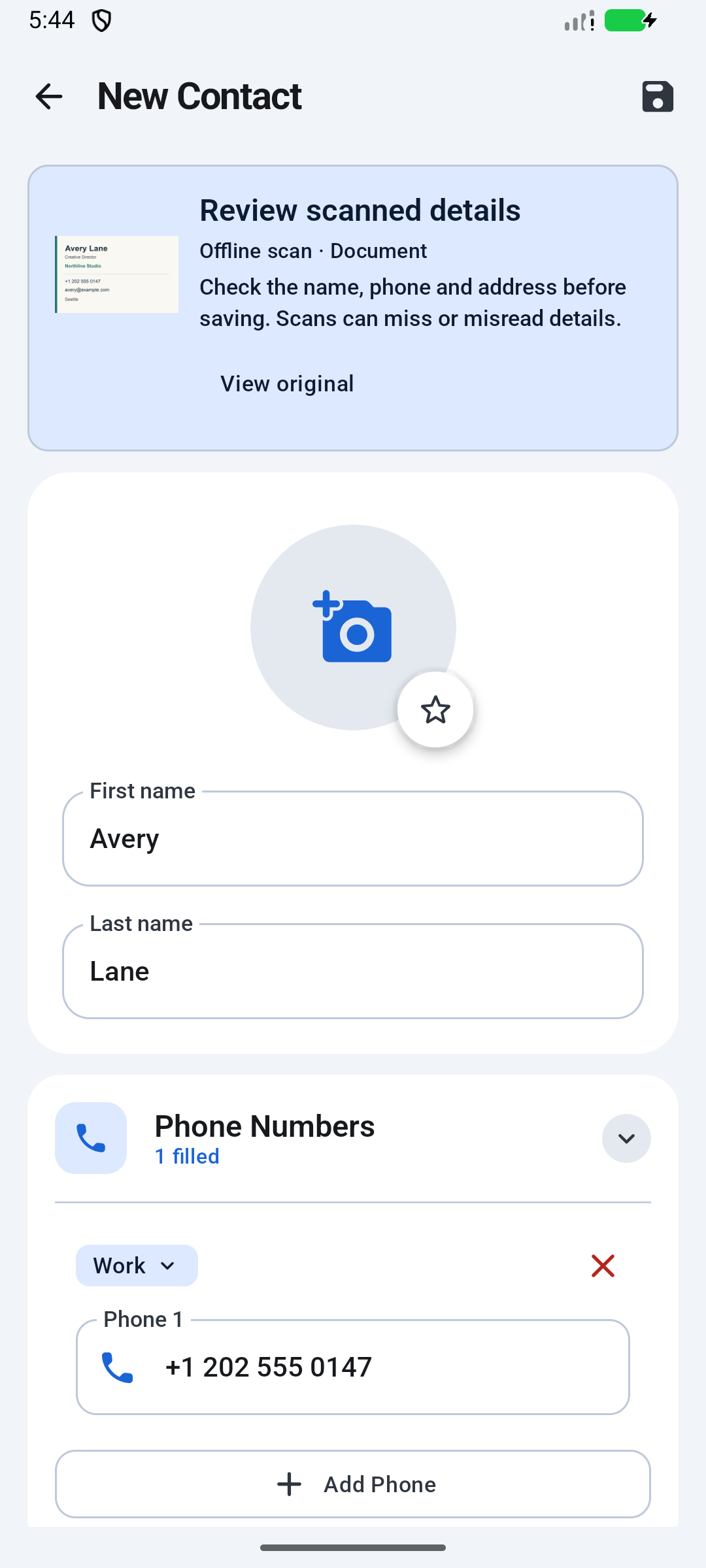
The result opens as contact details you can edit. Compare them with the original image before pressing Save. Do not assume that a field is correct simply because it has been filled in.
- Name and company: check spelling and make sure the company has not been mistaken for the person’s name.
- Phone numbers: check every digit, the country code and whether there is more than one number. Pay attention to similar-looking characters such as 0 and O.
- Email and website: look for missing dots, extra spaces and an incorrect domain. A small error can send a message to the wrong place.
- Address: check the building or unit number, street, locality, city and postal code. Keep useful address lines that the scan missed.
Correct any errors, add missing details manually and remove anything that does not belong to this contact. For a delivery label or utility bill, take extra care to distinguish the recipient or account holder from the sender or service provider.
Add a note about where you met or what the contact is for. That context can be as useful later as the number on the card.
6. Save the contact. Then check the place.
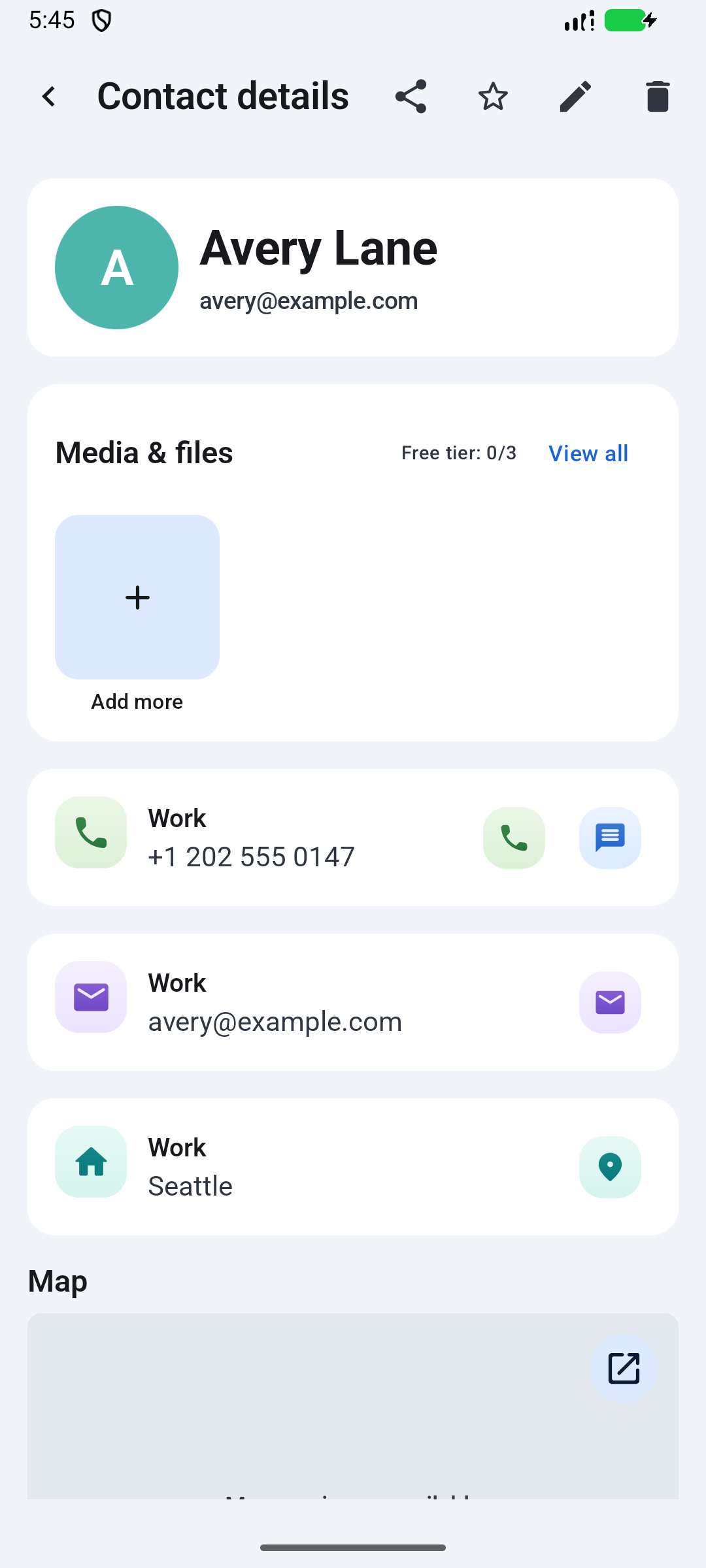
When you have checked the fields, tap Save to keep the entry in your address book. Open the saved contact and confirm that the important details are there. You can use groups, favorites and search to keep it easy to find.
If a location matters, choose a place on the map or add a supported map link shared from another app, including WhatsApp or Google Maps. Save the location with the address. Check the pin yourself: a printed address and the entrance you need may not be the same point.
Scanning does not guarantee an exact map location. The pin is an extra detail you add and verify, especially for a building with several entrances or an address that is hard to describe.
What scanning is included?
AI scans and offline scans have separate allowances. Starter AI scans are provided once per account, while the free offline allowance renews each calendar month.
| Scanning | Free | PremiumMonthly or yearly |
|---|---|---|
| AI scans | 5lifetime scans per account | 100scans per month |
| Offline scans | 10scans per calendar month | Unlimitedoffline scans |
Monthly and yearly Premium subscriptions also include cloud backup and restore, an ad-free experience, premium themes and unlimited contact attachments. Additional AI scan packs are available in the app; purchased pack balances do not expire. Prices are shown in the app for your country. The free version contains ads.
When a scan needs help
No text or no contact details were found
Inspect the source photo. Move closer while keeping the whole card visible, improve the lighting and remove reflections. Try a clearer image. If the card is not readable, enter the details manually rather than saving an incomplete result.
The name, number or address is wrong
Correct the editable fields against the original card. If several fields are wrong, try a better photo before scanning again. Offline recognition works best with English text; stylized print, tiny text and unusual layouts can need more manual correction.
The AI scan cannot finish
Check your connection and the message shown in the app. You can try again when the connection or service is available, or use the offline scan option and carefully review that result. Offline recognition has its own allowance.
A scan allowance has run out
Check which mode has reached its limit. The 5 starter AI scans are a lifetime allowance per account; they do not reset monthly. The free offline allowance is 10 scans per calendar month. Additional AI packs and monthly or yearly Premium options are available in the app.
The card duplicates an existing contact
Search your address book before keeping another entry. The app can find duplicate contacts and lets you review merge or delete actions. Check both entries so you preserve the phone numbers, notes and addresses you still need.
Privacy and your account
Choose the scan mode with the image in mind. Offline text recognition processes the photo on your device. AI scanning uploads it to the scanning service for processing and requires internet access. Those are different processing paths.
The current app requires Google sign-in during setup, including if you later choose offline scanning. AI scanning and account-based scan balances use your signed-in account. Cloud backup and restore are Premium features.
Read the Privacy Policy for details about data handling. For help, email appfeneshai@gmail.com. For account removal, use the account and data deletion instructions.
The useful habit: a clear photo, a careful comparison with the original, and a saved contact with the context you will need later.
Android · Google sign-in required · Free version contains ads